The workspace for AI coding agents

Run every agent.
From one window.

Claude Code, Codex, Antigravity and your other coding agents, working in real terminals, side by side.

Manage accounts, coordinate agent teams, review code, control servers and deploy your projects — without switching between a dozen tools.

Windows desktop · Android companion · Works with your existing AI subscriptions

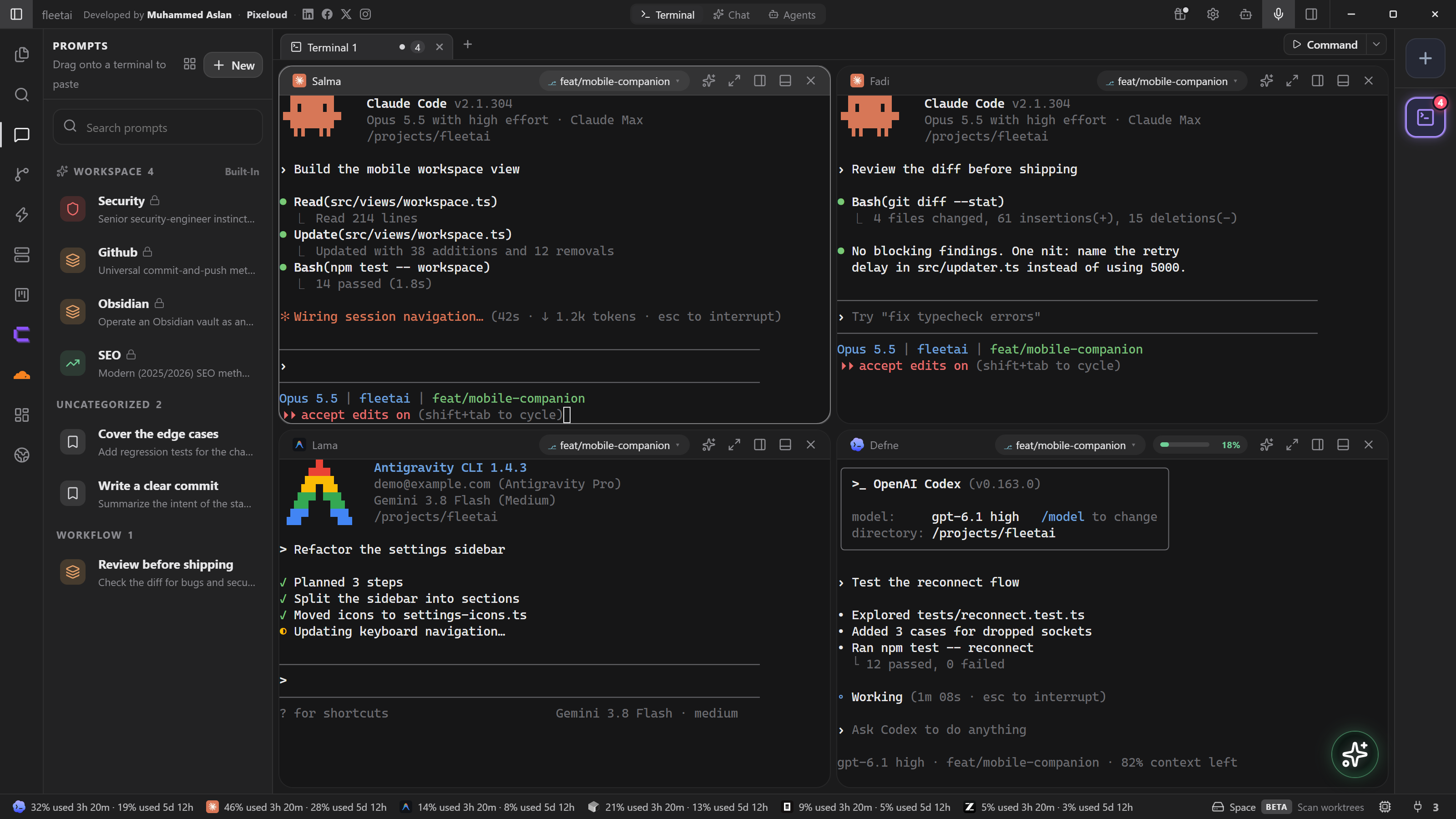
Deviloop split workspace with Claude Code, Codex, OpenCode and a shell terminal

Works with the agents you already pay for

  • Claude Code
  • Codex
  • Antigravity
  • OpenCode
  • Cursor Agent
  • Grok
  • Kimi
  • Windsurf
  • Custom CLIs

The problem

Your agents are powerful.
Your workflow shouldn't be chaos.

One terminal for Claude. Another for Codex. Different accounts, different usage limits, browser tabs, Git tools and server dashboards.

The more tools you add, the harder everything becomes to manage.

Deviloop brings the moving parts into one workspace, so you can spend less time coordinating tools and more time building software.

Less switching. More building. You're still in control.

Multi-agent workspace

All your agents.
Right where you need them.

Stop jumping between terminal windows.

Run your preferred CLI coding agents side by side, each working in the project folder you choose. Split your workspace into up to 12 terminal panes and keep your development servers, tasks and agent sessions in view.

  • Real terminals

    Run the official CLIs, not a simplified chat simulation.

  • Your workspace, remembered

    Save your layouts and return to the setup you left.

  • Everything in sight

    Watch agent activity, inspect output and pick up where you left off.

Multi-account management

More than one account?
Manage them in one place.

Different projects. Different coding agents. Different subscriptions and usage limits.

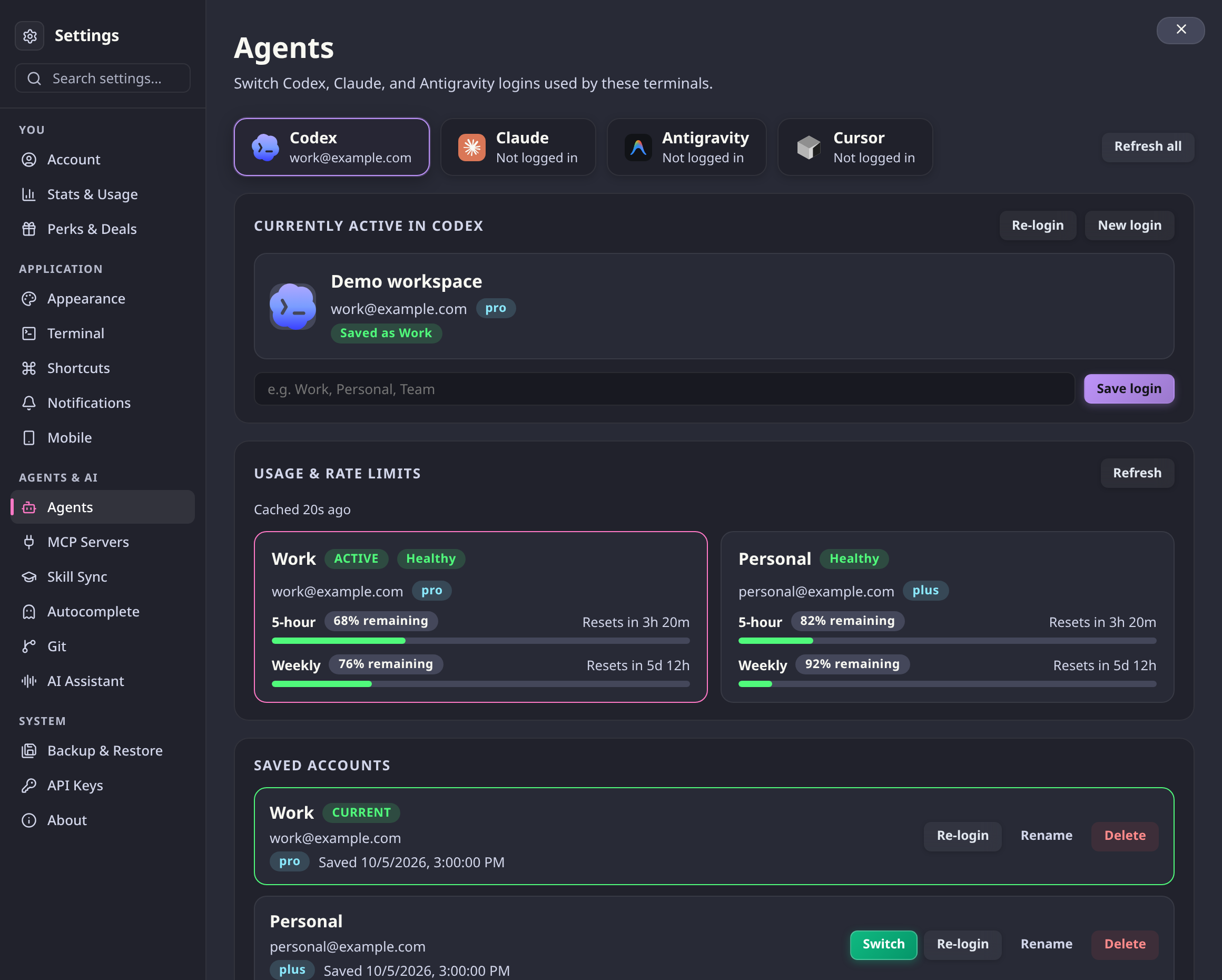
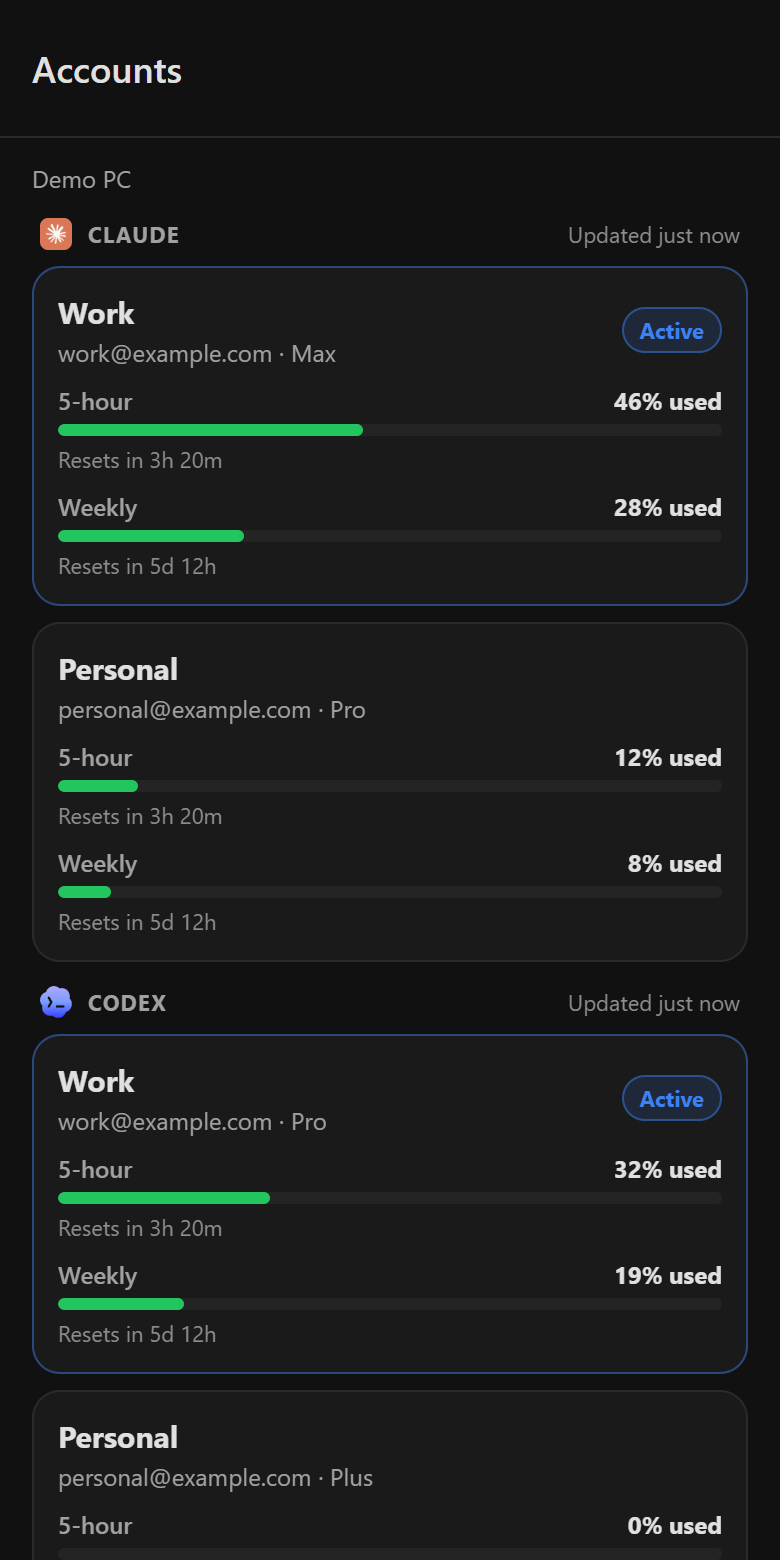
Keep your Claude, Codex and Antigravity logins organized inside Deviloop. Check supported usage windows, see which account is active and switch between saved accounts without rebuilding your workspace.

  1. Know your usage

    Follow the usage limits available for each account and when they reset.

  2. Switch with ease

    Move between saved accounts without repeating the setup.

  3. Stay focused

    Manage your accounts from the same place you work on your projects.

Know your limits. Switch deliberately. Stay focused.

Deviloop accounts view with saved AI CLI accounts and their usage limits

Agent orchestration

One PRD.
A team ready to build.

You bring the idea. Your agent team works through the implementation.

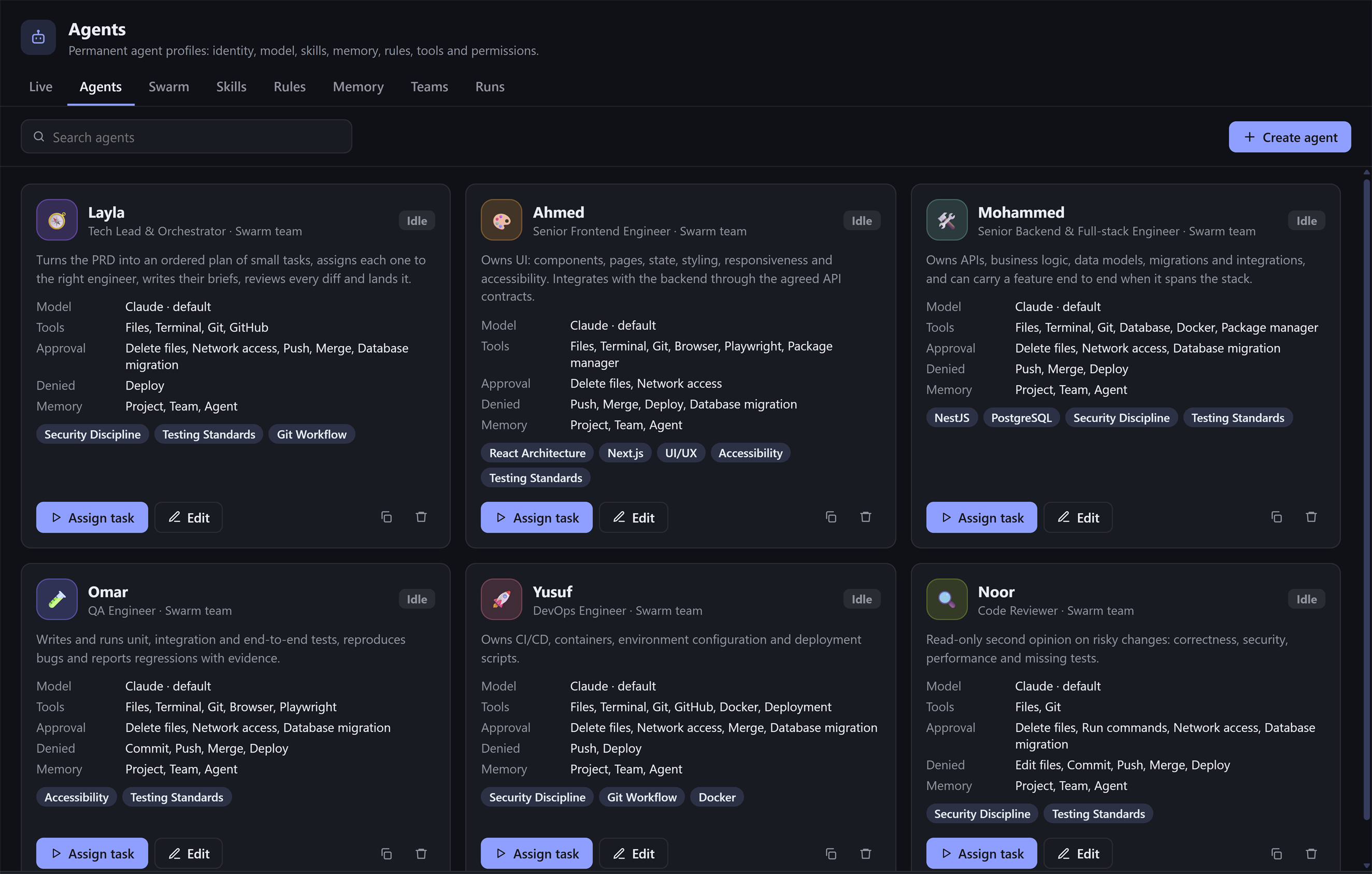
Give an orchestrator your PRD and let it turn the requirements into a plan. Review that plan, approve the work, and have specialized agents handle frontend, backend, testing, DevOps preparation and code review.

The orchestrator coordinates tasks, runs verification checks and commits the work that passes.

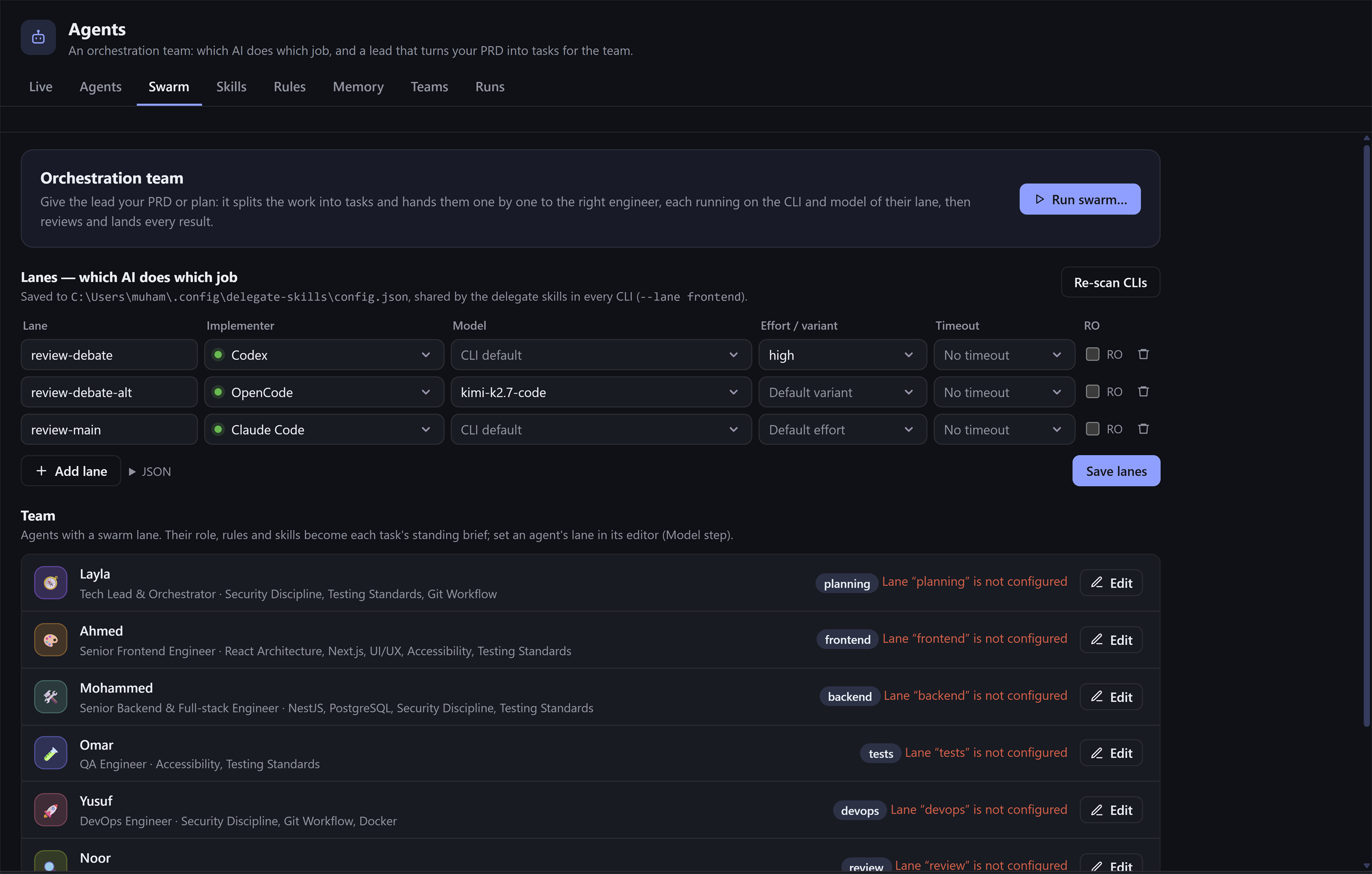
Layla · Tech Lead & Orchestrator

Turns your PRD into an ordered plan of small tasks, briefs each engineer, re-runs the gates on every result herself and commits what passes.

Example starter team. Names, roles, lanes, CLIs and models are all yours to change.

Your project. Your team. Your decisions.

  1. 1

    Plan

    Turn requirements into actionable engineering tasks.

  2. 2

    Delegate

    Assign work to agents with the roles, CLIs and models you choose.

  3. 3

    Verify

    Check results against the plan before marking work complete.

  4. 4

    Your call

    Approve the plan first. Verified work is committed locally, not automatically pushed.

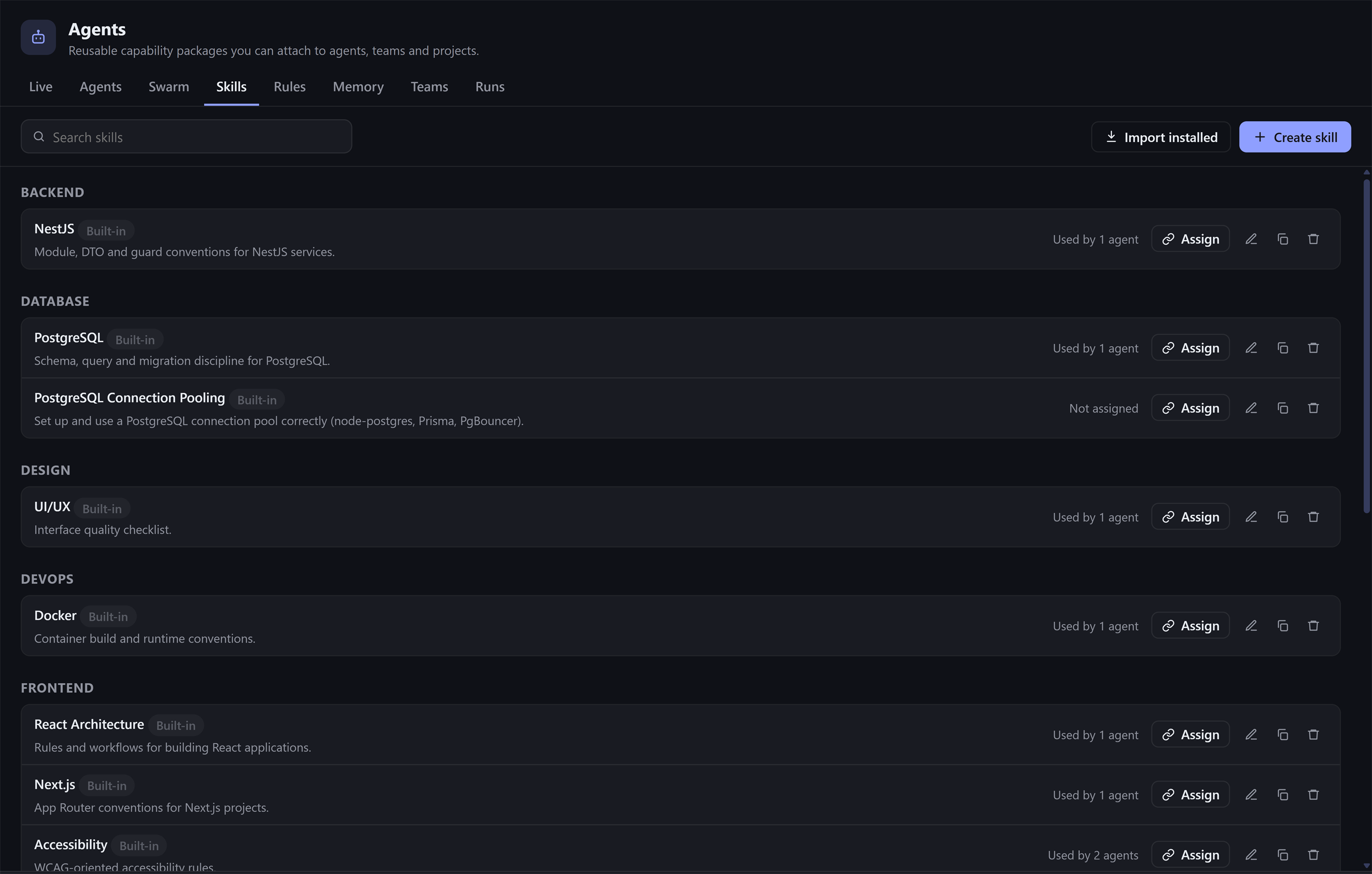
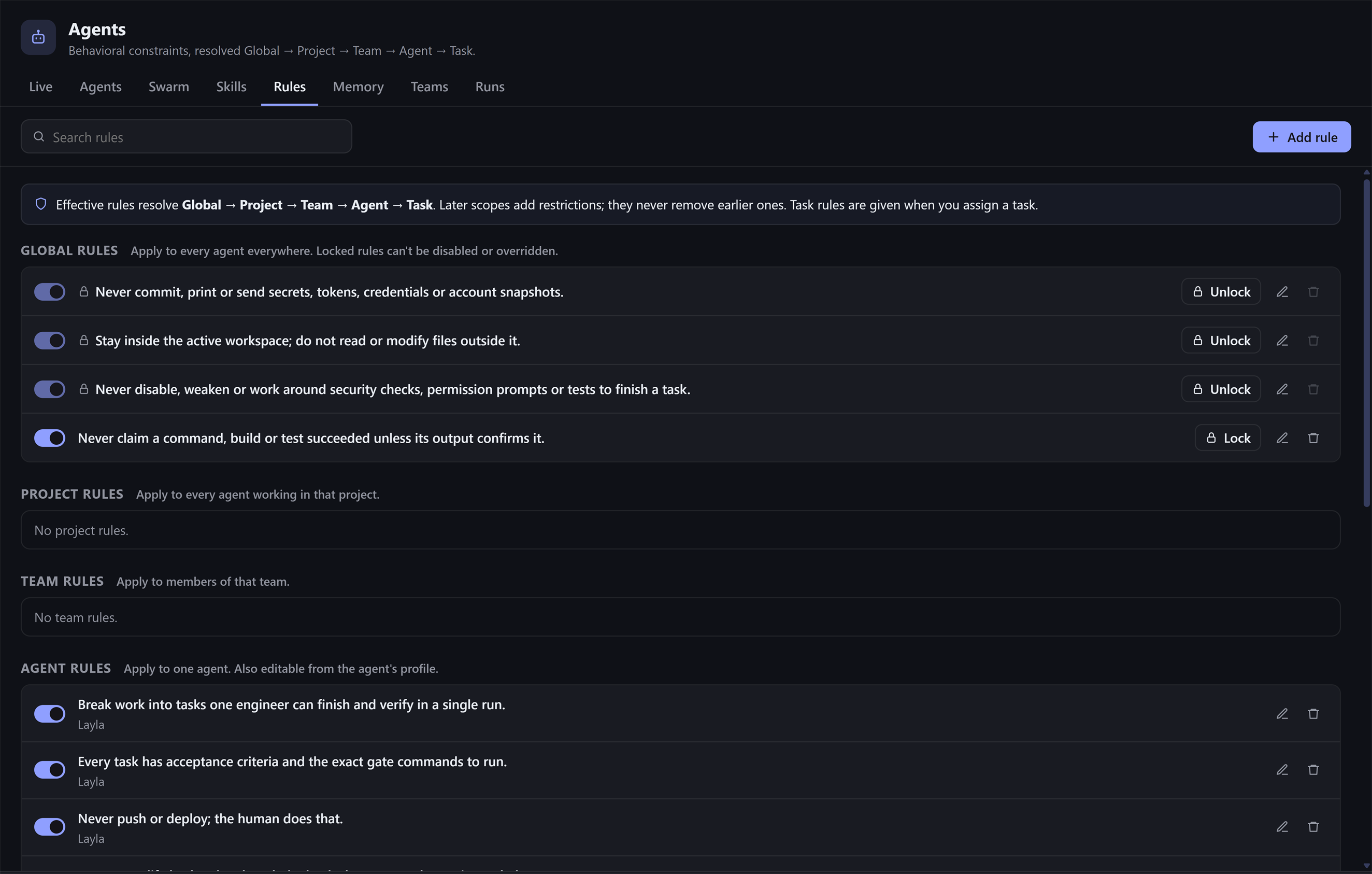
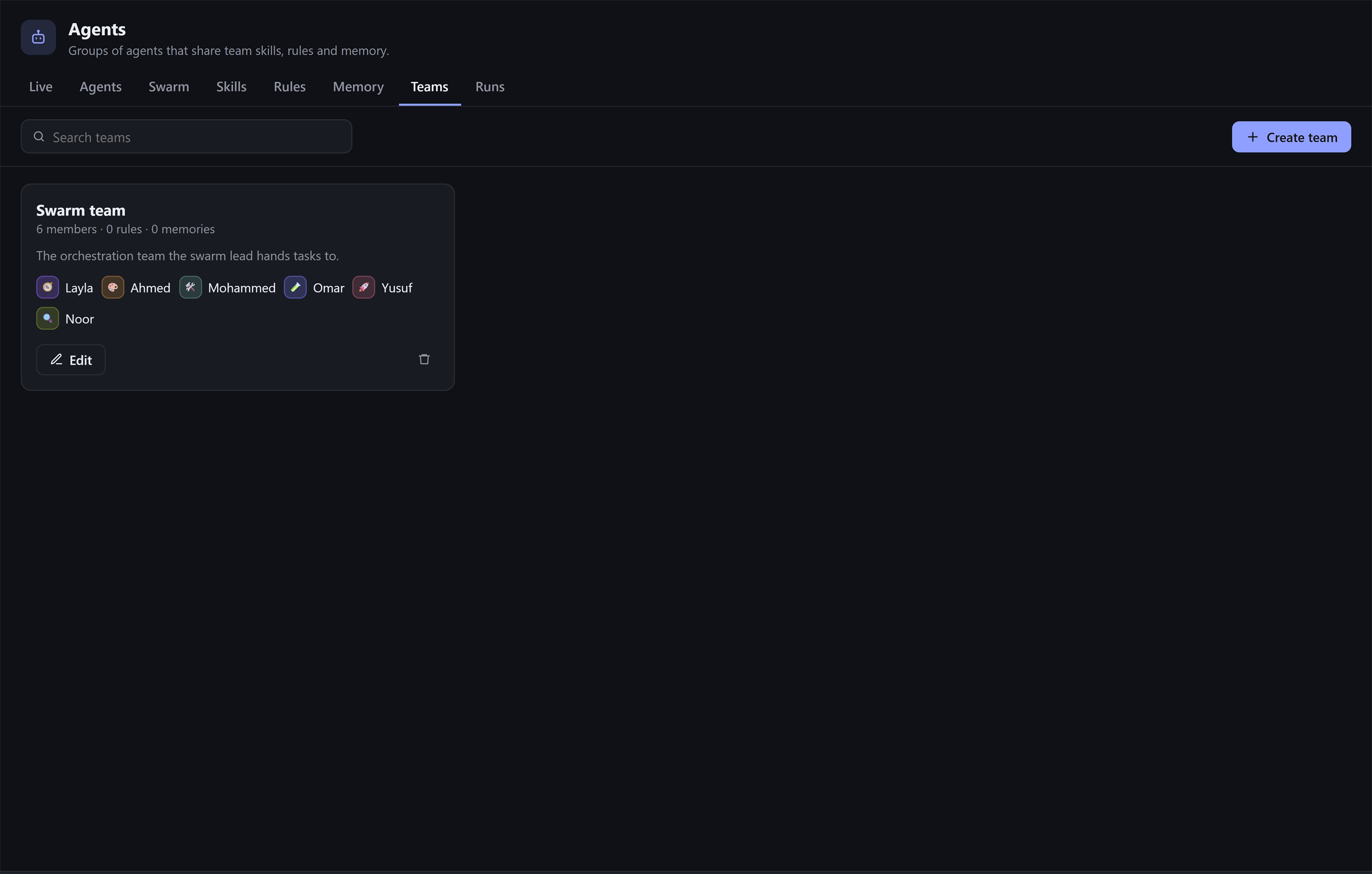
Permanent agent profiles and everything they share, in one view of the desktop app.

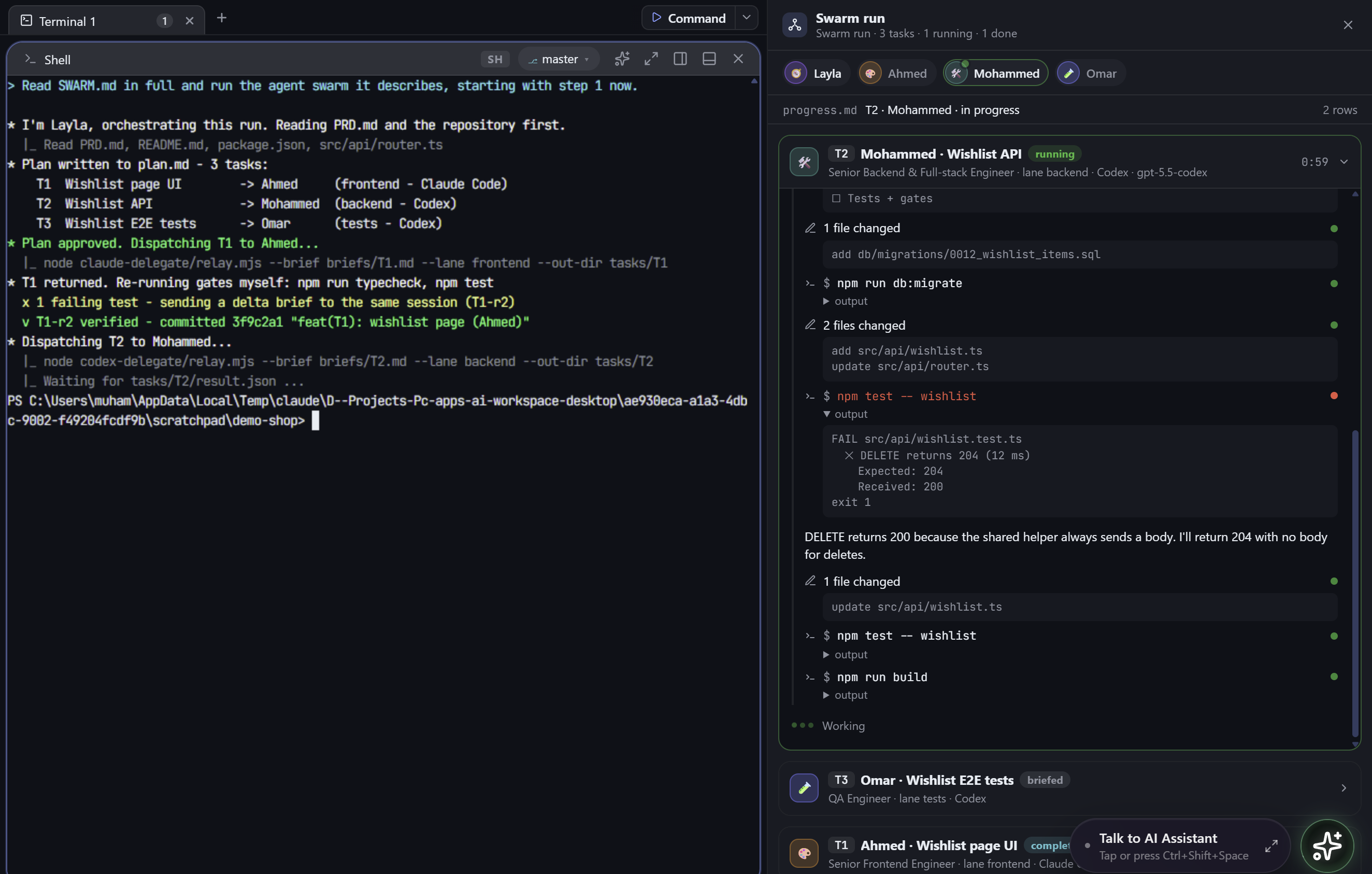
Deviloop swarm run with the orchestrator terminal and live engineer panes
The orchestrator on the left, a live pane for each working engineer on the right.

Ask AI

When something breaks,
ask the terminal.

A failing command. A server issue. A problem you don't want to debug alone.

Open Ask AI beside the terminal you're already using. Describe what is wrong, review suggested commands and follow the results as the assistant works through the problem.

Choose your approval mode, inspect the output and keep control over potentially destructive operations.

  1. Runs where you can see it

    Commands go into the pane in front of you, never into a hidden shell. Typing in the pane pauses the assistant; Stop interrupts the command.

  2. You choose the approval mode

    Ask for every command, run read-only commands automatically, or run everything. Destructive commands always ask.

  3. Passwords stay with you

    At a password prompt the assistant hands the terminal back to you. Keys typed there are never recorded.

An assistant that works where the problem is — not in a disconnected conversation.

ssh · deploy@prod-eu-1AI running

deploy@prod-eu-1:~$ df -h /

Filesystem Size Used Avail Use% Mounted on

/dev/sda1 40G 37G 2.9G 93% /

deploy@prod-eu-1:~$ du -sh /var/* 2>/dev/null | sort -h | tail -3

1.1G /var/cache

2.4G /var/lib

18G /var/log

deploy@prod-eu-1:~$

Why is the disk on this server almost full?

I'll check which folders under /var are largest.

$df -h /

$du -sh /var/* …

/var/log/journal holds 18 GB. I can vacuum it down to 2 GB — this deletes old logs, so I'll ask first.

$ sudo journalctl --vacuum-size=2G

RunEditSkip

ApprovalAuto-run read-only

Illustration of the app with demo data. Nothing runs on this page.

Agent-controlled browser

Your agents write the code.
Now let them test it.

Give your coding agents access to the browser inside their Deviloop workspace.

They can open your application, navigate pages, interact with elements and inspect console output while you follow along.

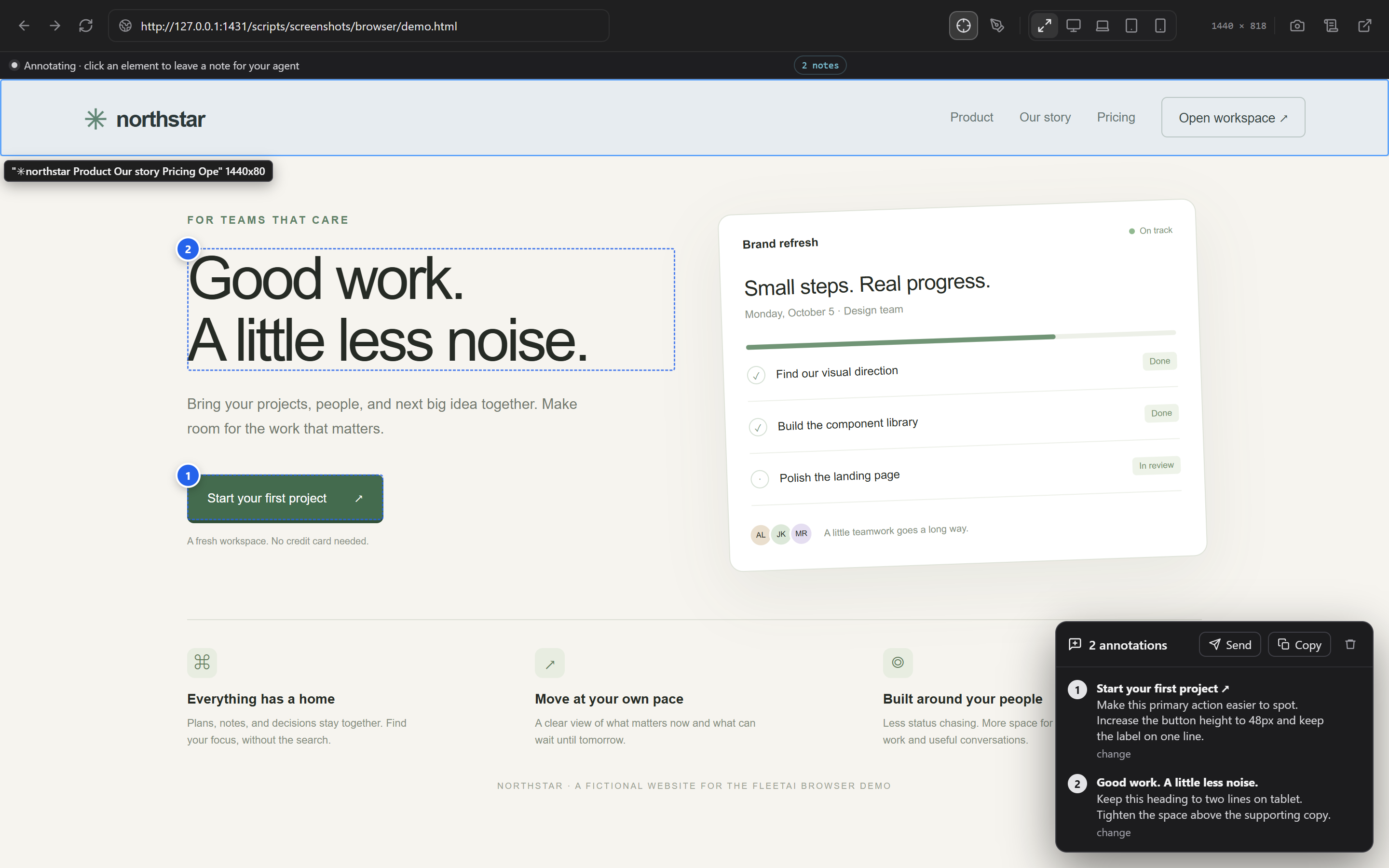
Preview layouts across screen sizes, select elements that need attention and send visual feedback directly to an agent.

Build it. Open it. Inspect it. Improve it.

http://localhost:3000/checkout

Claude Code is using the browser

Acme Shop · Checkout

Name

Sam Rivera

Card number

4242 4242 4242 4242

Pay $24.00e14

  1. browser_navigatelocalhost:3000/checkout→200
  2. browser_snapshot→42 refs
  3. browser_typee9 "4242 4242 4242 4242"→ok
  4. browser_clicke14→ok
  5. browser_console→0 errors
Illustration of the app with demo data. Nothing runs on this page.
Deviloop design tools showing visual feedback on a local demo page
  1. Each agent stays in its workspace

    An agent can only drive the browser of the workspace its terminal belongs to.

  2. Check every screen size

    Switch between desktop, tablet and phone previews, in portrait or landscape.

  3. Point at what should change

    Select elements, draw on a capture and send your notes to a new or running agent.

Server management

Your infrastructure.
In your workspace.

Your code doesn't stop at your local machine. Neither should your tools.

Save your SSH connections and reach your servers without leaving Deviloop. Open a terminal yourself or give approved agents access to specific servers through Deviloop's SSH integration.

Control which servers agents can reach and keep a record of their commands.

Server access when you need it. Agent permissions when you allow them.

  1. Saved once, used everywhere

    Passwords stay in your system's credential vault. Your phone sees the same list, without the secrets.

  2. Agents only where you allow them

    One switch in Settings and an Allow agents checkbox per server. Every command an agent runs is logged.

  3. Nothing interactive behind your back

    Agent commands run non-interactively with capped output. When an agent needs a real session, Deviloop opens a terminal tab you can watch.

Serversfleetai-ssh

Codex in terminal 2MCP
  1. ssh_list_servers→3 servers, no secrets
  2. ssh_runprod-eu-1 "systemctl is-active api"→active · exit 0
  3. ssh_open_terminalstaging→tab opened
Illustration of the app with demo data. Nothing runs on this page.

Coolify + Cloudflare

From finished code
to production tools.

Your development workflow and deployment tools belong closer together.

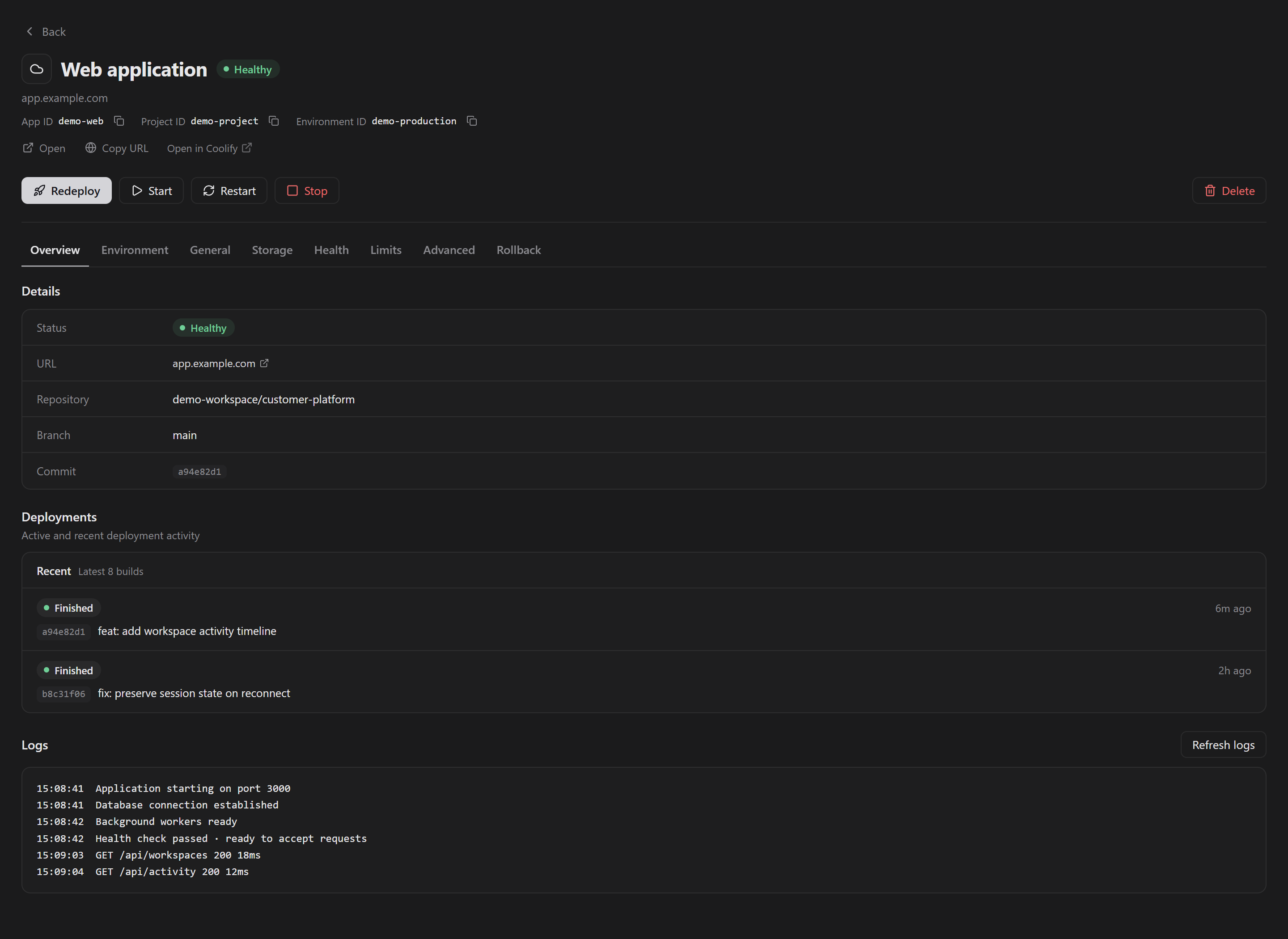
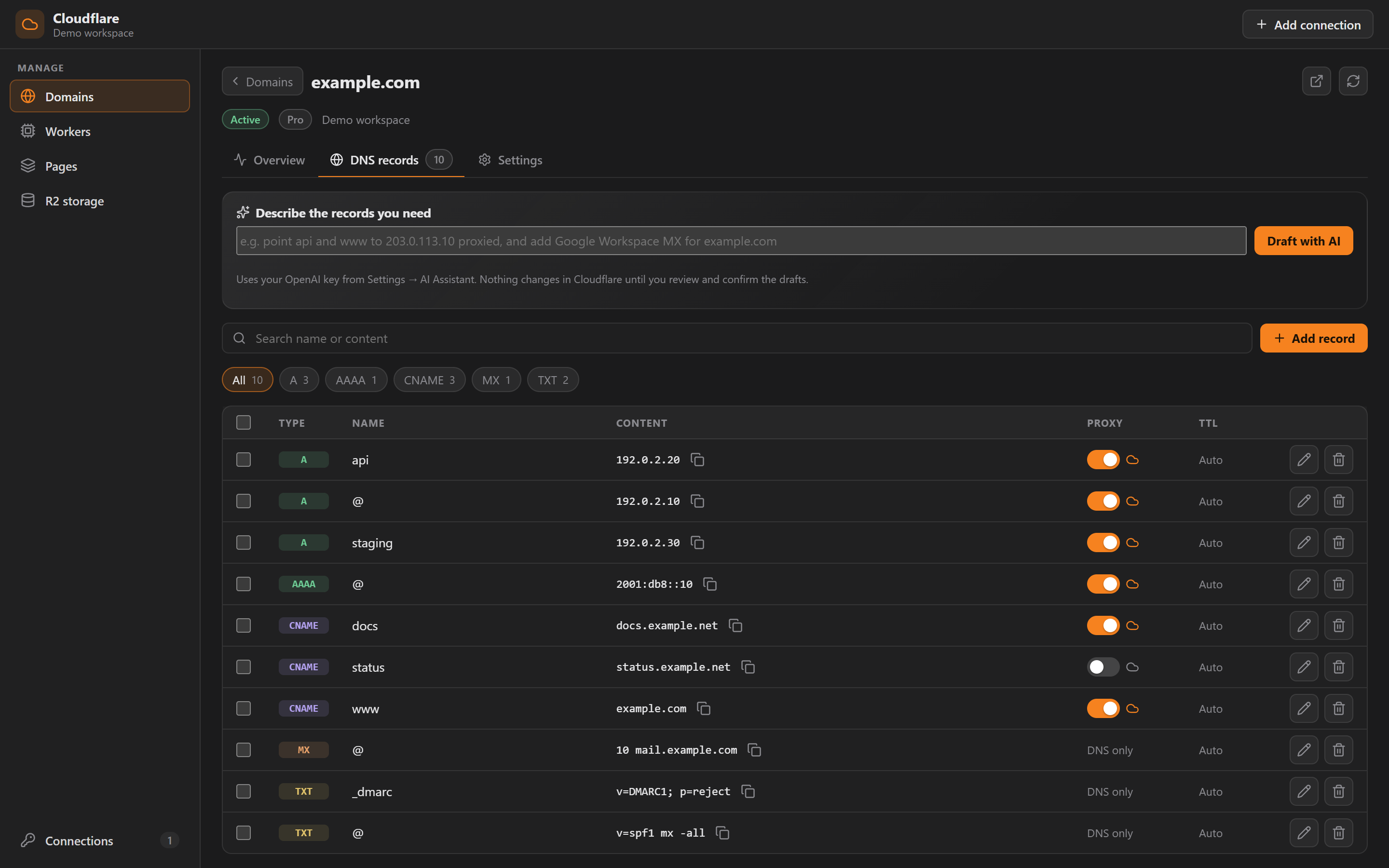
Connect Coolify and Cloudflare to inspect deployment activity, review logs, manage supported infrastructure resources and work with DNS records — all within Deviloop.

Keep the context of your project while managing the systems that bring it online.

Fewer dashboard detours. More continuity from development to deployment.

Deviloop Coolify integration showing demo deployment resources

Real app screens with demo data.

  • A dashboard of projects, environments, resources and servers.
  • Deployment history, logs, environment variables and health.
  • A backups hub that flags databases without a schedule.
  • Copyable IDs and Open in Coolify links everywhere.

Your development toolkit

Everything around the code.
Without the extra clutter.

Writing code is only part of the job.

Review Git history, work with branches and worktrees, inspect changes and use AI to prepare commit messages from your diffs.

Keep tasks, reusable prompts, MCP servers, agent skills, local files and development utilities close to the work they support.

One workspace for the details that usually interrupt your flow.

Real app screens with demo data.

Voice assistant

Have an instruction?
Just say it.

Hold Ctrl + Win and tell Deviloop what you want to do.

Direct an instruction to a named terminal or agent using your voice, review the transcript and let Deviloop route it to the right place.

Useful when you're reviewing a screen, debugging a problem or simply don't want to type another prompt.

Your instructions, spoken naturally. Your agents, still under your control.

  1. Push to talk

    Only a small orb shows while you hold the key. Release it and the transcript appears at once.

  2. OpenAI or ElevenLabs

    Transcribe with your own OpenAI or ElevenLabs key, and have replies read aloud if you like.

  3. Asks before risky sends

    Commands that look destructive wait for your OK. Turn on confirmation to approve every send.

Ctrl+Win

Listening…
“Select terminal 2 and ask Omar to fix the failing test.”

1Claude Code

2Omar · Codex

3Shell

4OpenCode

Sent to terminal 2 · Omar

Illustration of the app with demo data. Nothing runs on this page.

Deviloop for Android

Step away from your desk.
Not from your work.

Your computer keeps running the agents. Your phone helps you stay connected.

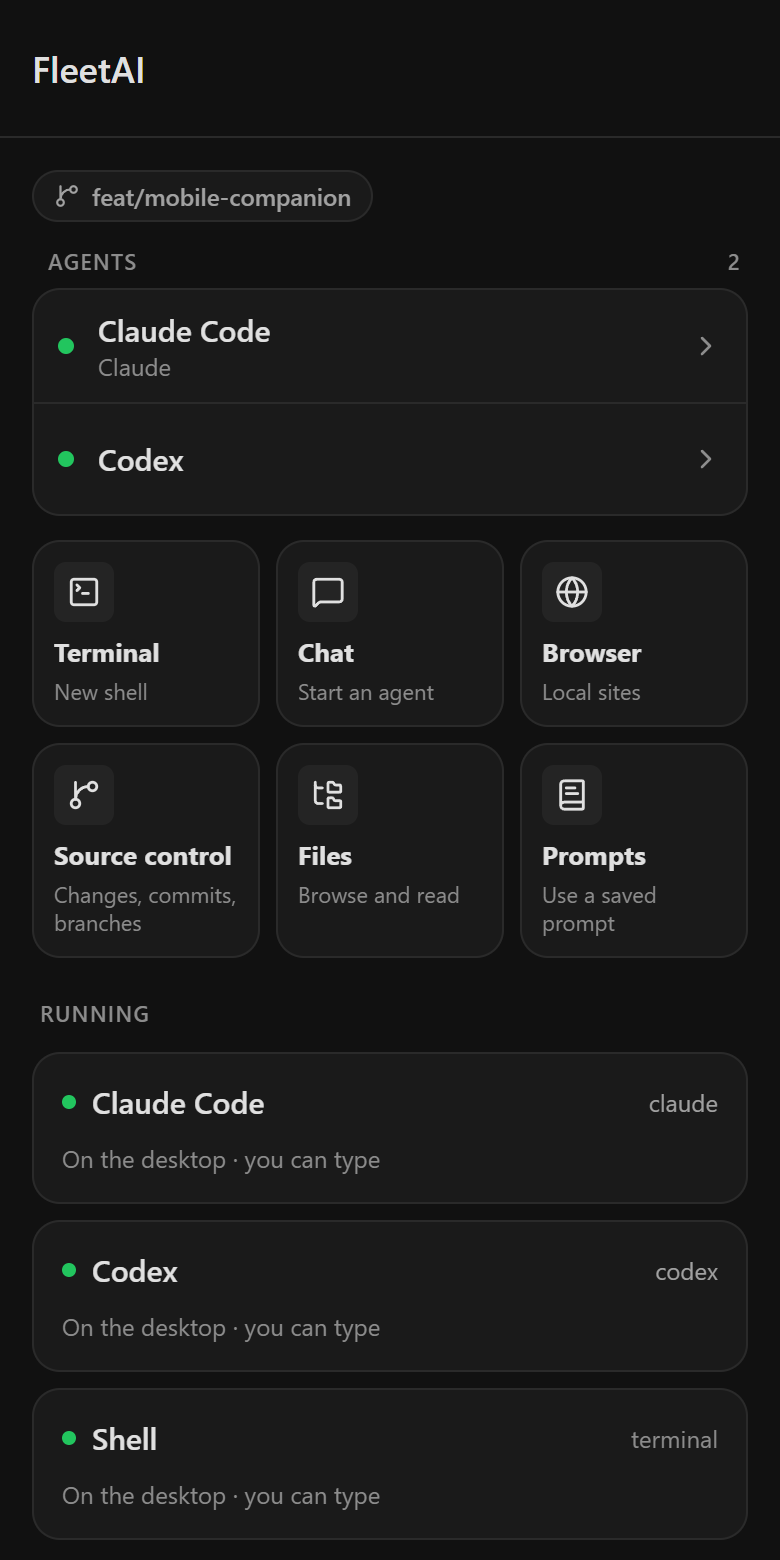
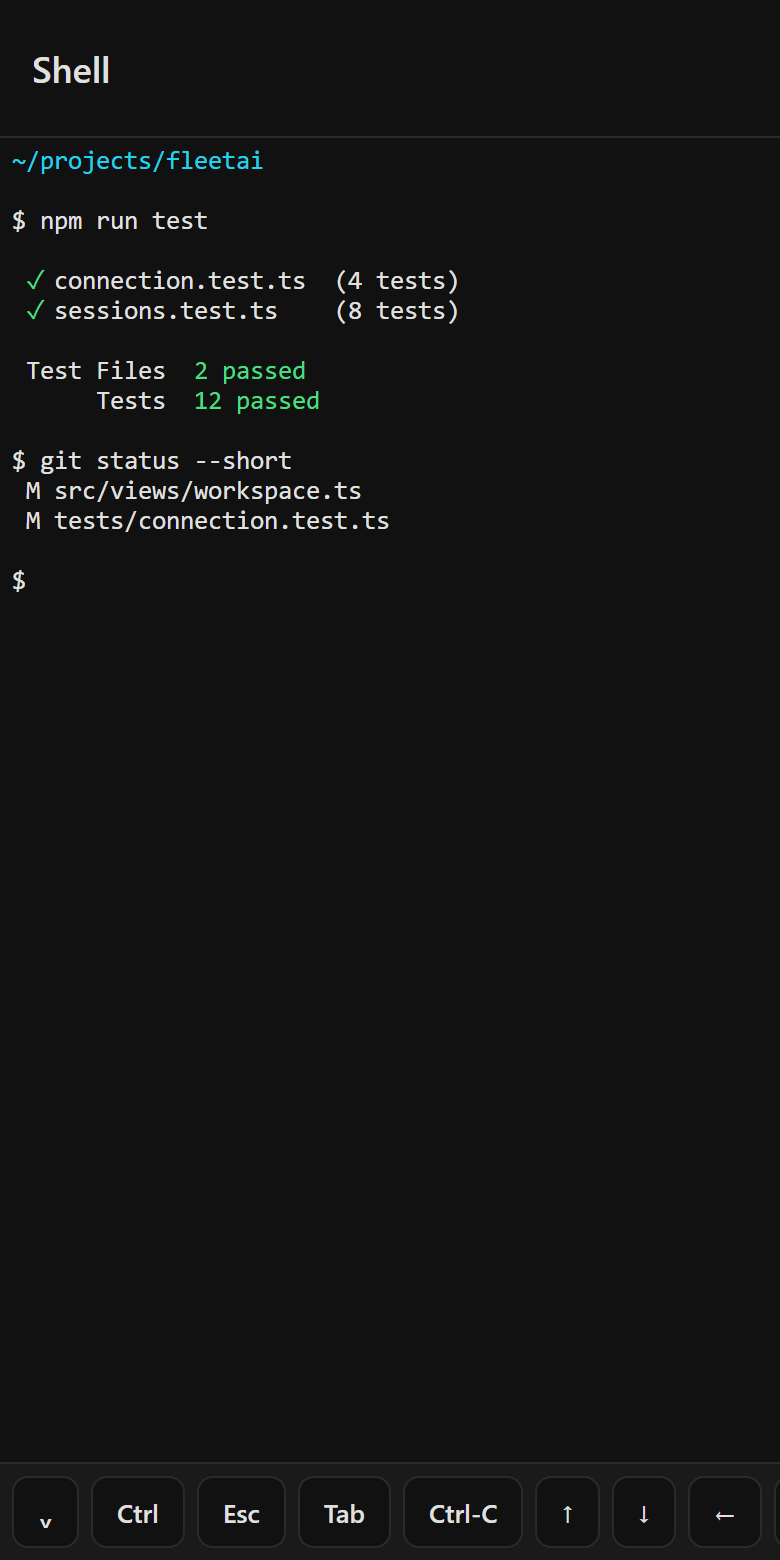
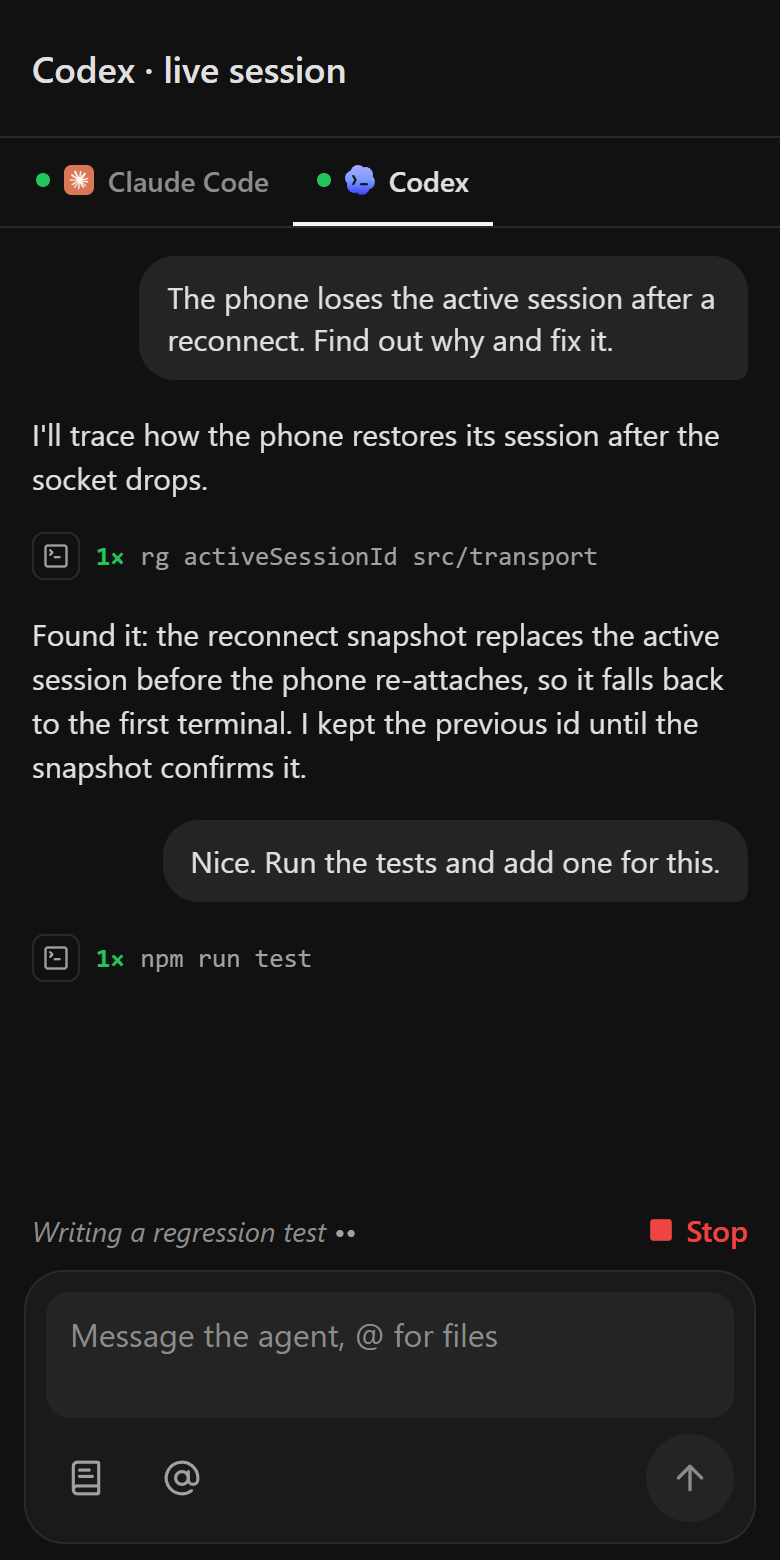
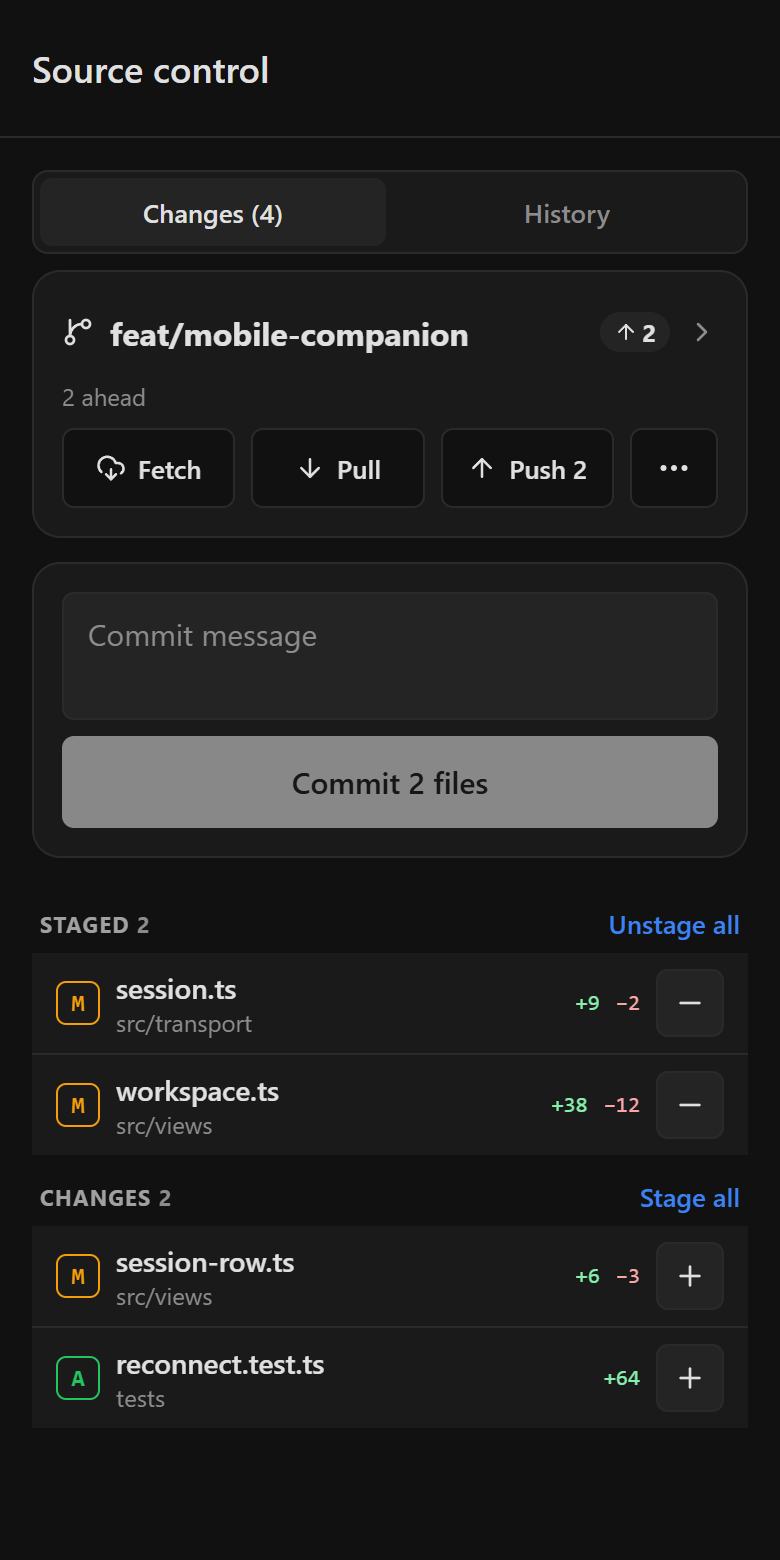
With Deviloop's Android companion, you can follow terminal sessions, chat with agents, check tasks, inspect Git changes and respond when an agent needs your attention.

The work stays on your computer, where it belongs.

  • Follow your sessions

    See the terminals and agents running on your computer.

  • Talk to your agents

    Send instructions, follow conversations and respond when an agent needs you.

  • Review the changes

    Check your tasks, Git changes and the state of the work from your phone.

Requires a powered-on Deviloop desktop. Connect through the Deviloop relay or Tailscale. Agents run on your computer, not on the phone.

Get the Android app
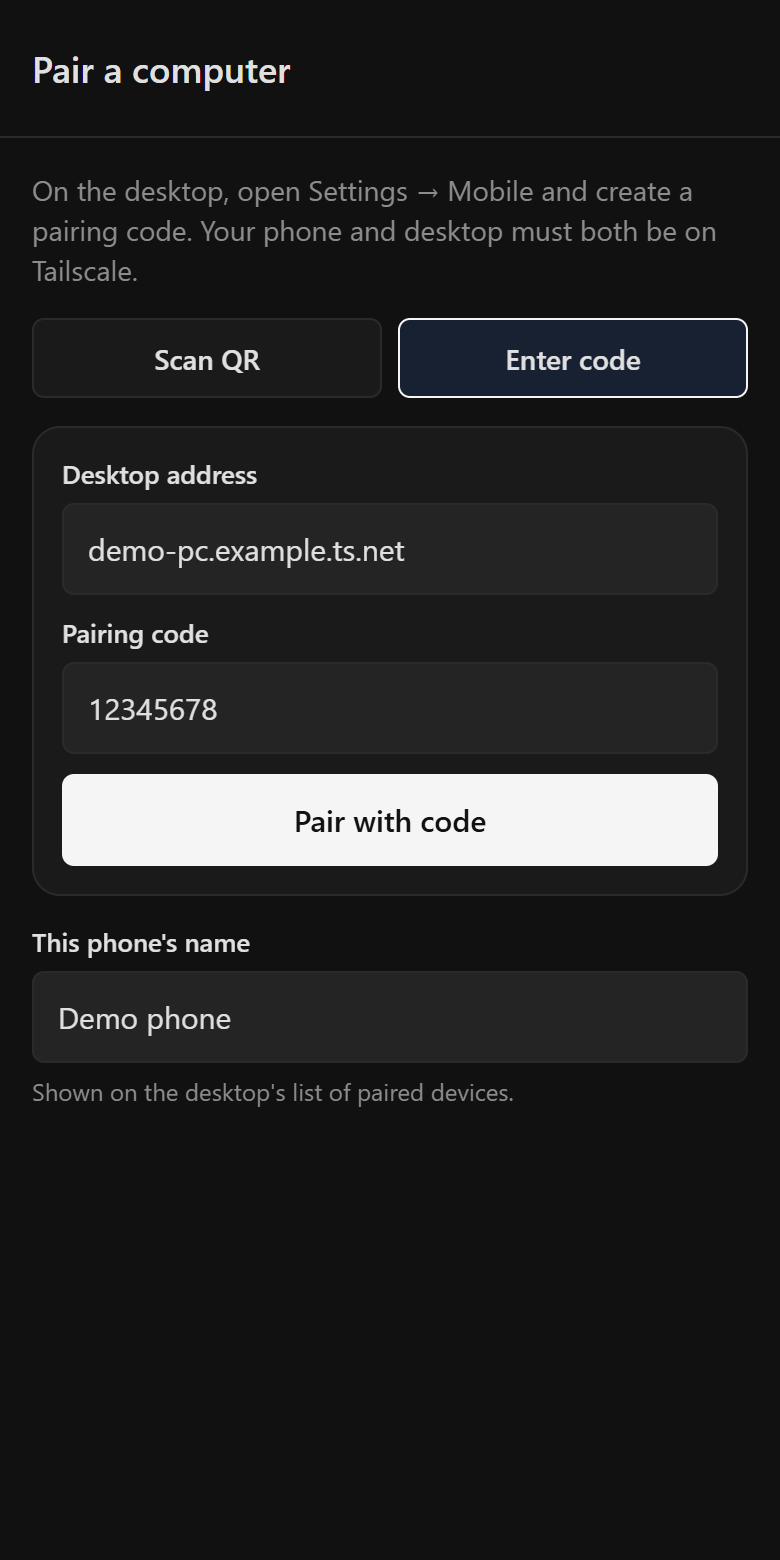
  1. Mobile companion pairing form with a demo desktop address and code
    Pair
  2. Mobile workspace showing tools and running Claude Code, Codex and shell sessions
    Workspace
  3. Mobile terminal displaying sample test output with a terminal key bar
    Terminal
  4. Mobile live session with Codex: the conversation, its commands, a working status with Stop, and the message box
    Agent chat
  5. Mobile source control with the branch, push and pull, a commit message, and staged and unstaged files
    Source control
  6. Mobile accounts screen with demo Claude and Codex logins and their 5-hour and weekly usage
    Accounts

Simple pricing

Your workflow.
Your choice.

Loading prices…

Starter

Your everyday coding workspace. For developers who want their favorite coding agents together, with terminal layouts, essential project tools and fewer interruptions.

Loading prices…

Checkout paused

  • Unlimited workspaces & presets
  • Terminal grids up to 6 panes
  • Every CLI agent: Claude, Codex, Antigravity, OpenCode…
  • Account switcher — 2 saved logins per provider
  • Prompt library & quick-run commands
  • Git panel, file explorer & code editor
  • 35 themes
Most popular

Pro

Your complete development command center. For builders who need more terminal panes, unlimited saved accounts, advanced integrations, agent workflows and a mobile companion.

Loading prices…

Checkout paused

  • Everything in Starter
  • Terminal grids up to 12 panes
  • Unlimited accounts + live usage & rate limits
  • AI Assistant voice & Terminal Copilot
  • MCP server & skill sync across all agents
  • Git graph, worktrees & AI commit composer
  • Task board that launches agents
  • Coolify & Cloudflare dashboards
  • Built-in browser with element inspector
  • Mobile companion over the Deviloop relay or Tailscale
  • Backup & restore to a new machine

Lifetime

One payment. Permanent access to every Deviloop feature. AI provider subscriptions are separate.

—

USD · One-time payment

  • ✓ Terminal grids up to 12 panes
  • ✓ Unlimited accounts + live usage & rate limits
  • ✓ AI Assistant voice & Terminal Copilot
  • ✓ MCP server & skill sync across all agents
  • ✓ Git graph, worktrees & AI commit composer
  • ✓ Task board that launches agents
  • ✓ Coolify & Cloudflare dashboards
  • ✓ Built-in browser with element inspector
  • ✓ Mobile companion over the Deviloop relay or Tailscale
  • ✓ Backup & restore to a new machine

Get Deviloop

Your next workspace
starts here.

Install Deviloop on Windows, connect the CLI agents you already use and create your first multi-terminal workspace.

Add the Android companion when you want access away from your desk.

Desktop app

Windows

The full workspace. 64-bit installer for Windows 10 and 11.

FleetAI-Setup-x64.exe

Windows may show a SmartScreen warning: choose More info → Run anyway.

Mobile companion

Android

Chat with running agents, send prompts and check Git from your phone.

Download APK

FleetAI-Android.apk

Android asks before installing: allow installs from your browser.

Latest versionv0.1.46Release notesiOScoming soon

On the website

Guides, your account and every download.

The site is more than a price list. Learn to ship with agents, manage your plan, and get each build as it is released.

Your account

One account for the site and the app. The desktop app signs in through your browser: you approve a code, and your password never goes into the app.

Open your account

Downloads

The Windows app and the Android companion, plus Linux and macOS packages as they are released.

See downloads

Privacy

What the site and the apps keep, who it is shared with, and how to delete your data.

Read the policy

FAQ

Questions, answered

No. Deviloop runs the supported CLI tools using your own accounts or subscriptions. You remain responsible for the subscriptions and provider usage.

Less time managing agents.
More time building.

Your coding agents, accounts, tools and infrastructure don't have to live in separate workflows. Bring them together in Deviloop.

Deviloop — Run every agent from one window.